Create your first form
Start from scratch, from one of 48 templates, from a form file or by describing it to Filo, then add questions and publish.
Every plan
Every way to start a form begins at the same place: What would you like to create? It's at the top of Home, and Create form in the sidebar opens it anywhere in the app.
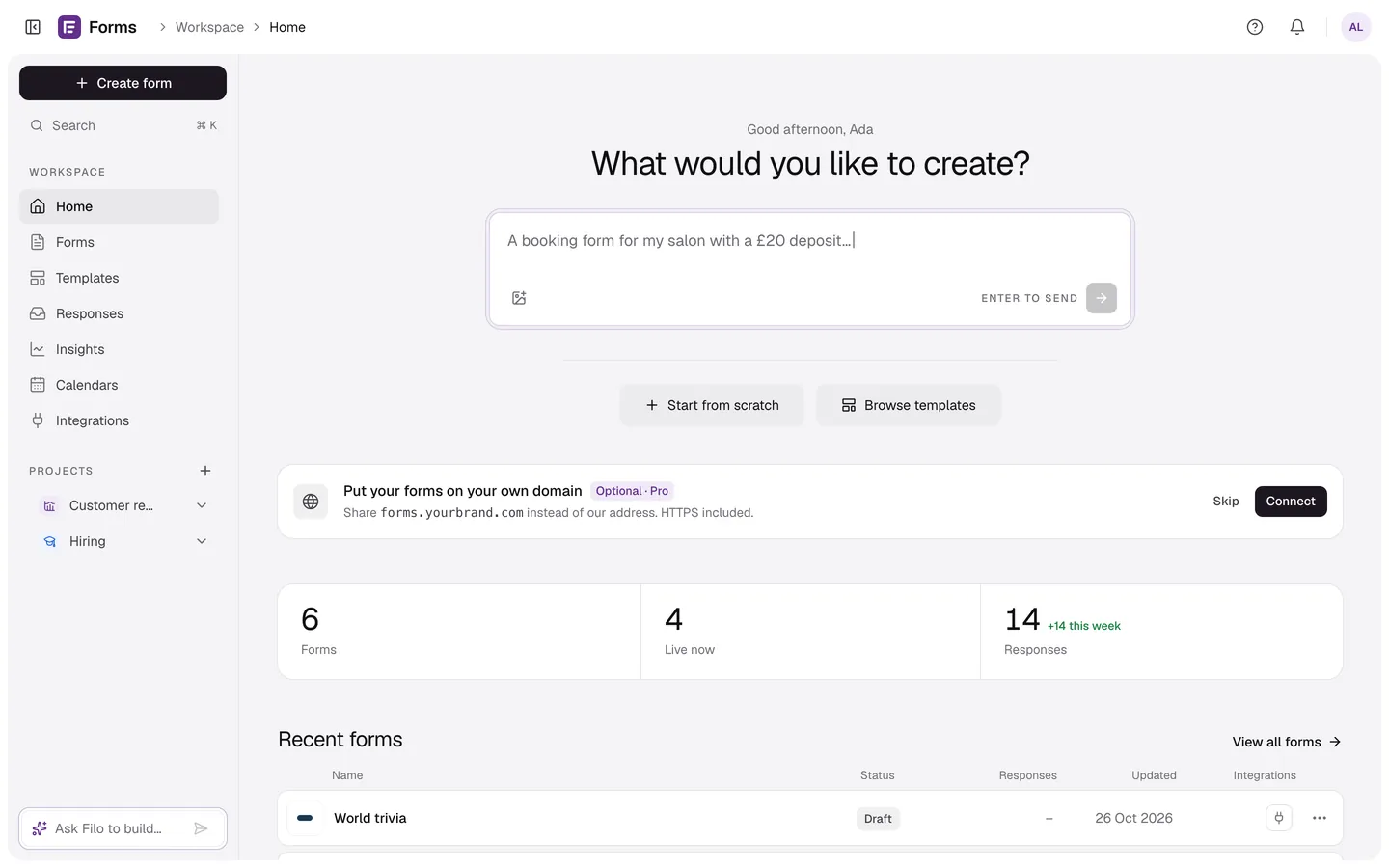
Four ways to start
| Option | What you get |
|---|---|
| Start from scratch | A new form with a welcome screen, a short text question, an email question and an ending, ready to edit. |
| Browse templates | One of 48 ready-made forms with its questions, logic, photos and theme. See templates. |
| Describe it (Pro) | Type what the form is for, or attach a photo of a paper form, and Filo builds it. See build a form with AI. |
| Import a form file | A .json file exported from another FormsAI form. See export and import. |
Add your questions
- In the builder's Build tab, select the + under a screen on the canvas, or press /.
- Pick a question type, or type to filter the list (for example “email”).
- Click the question's title on the canvas and type your question. Press Enter or click away to finish.
- Use the panel on the right for the question's settings: Required, choices, limits and more.
Publish and share
When it looks right, select Preview (⌘P) to try it, then Publish. FormsAI gives your form a public link like app.formsai.dev/f/your-form. Copy it from the toast, or go to the Share tab for embeds and QR codes.
Home keeps a short checklist (create a form, publish it, collect a response) until you've done all three.