Embed a form on your website
Inline, popup, slider, side tab or a plain iframe: copy the snippet from Share and paste it into your page.
Every plan
On this page
- Publish the form, then open Share → Embed in a web page.
- Pick an Embed mode. The preview shows how it will look.
- Set the Height (inline) or the Button text (popup, slider, side tab).
- Select Copy embed code (or Copy code under Embed code) and paste it into your page's HTML where the form should appear.
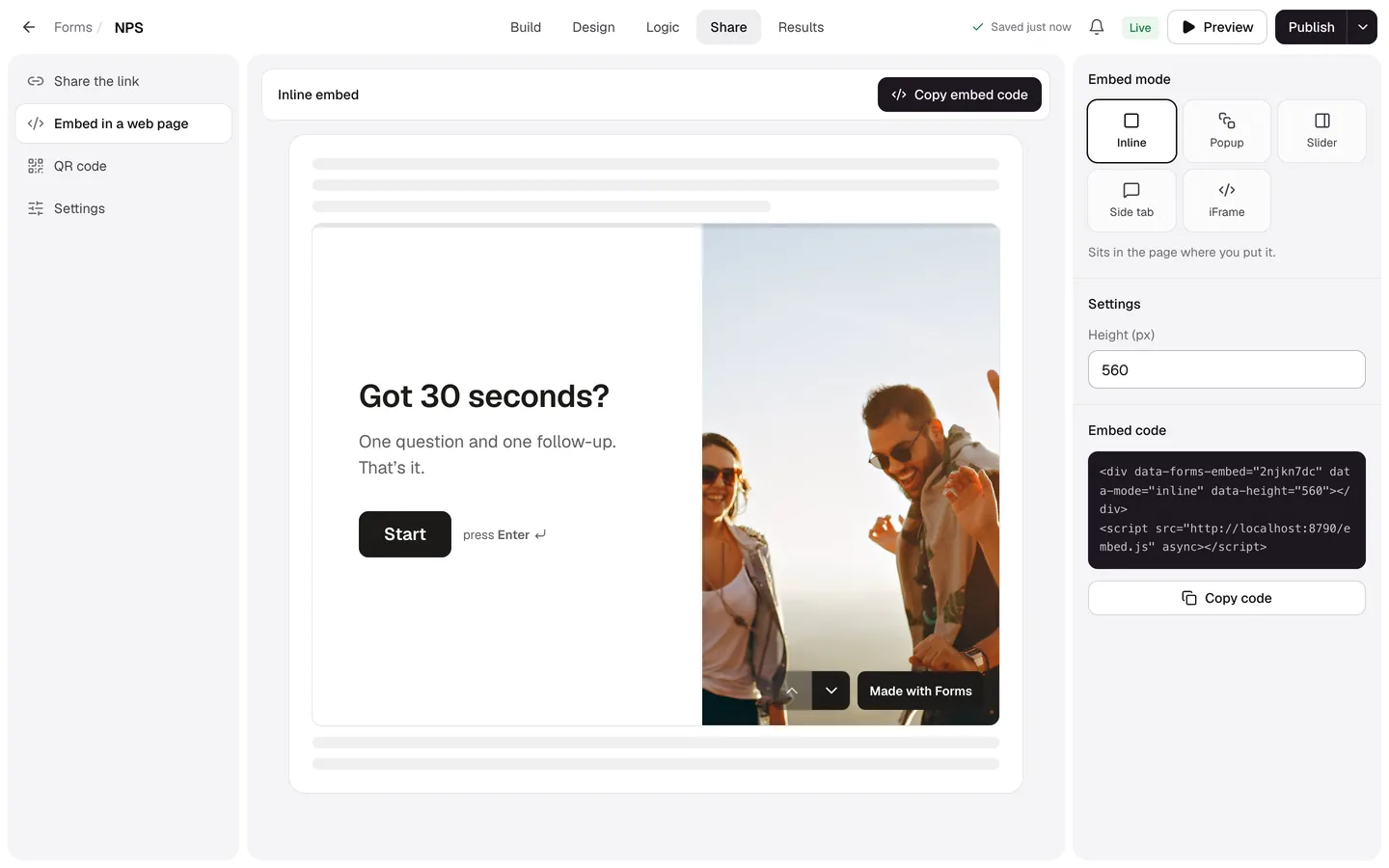
Embed modes
| Mode | What people see |
|---|---|
| Inline | The form sits in the page where you put it. |
| Popup | A button opens the form over the page. |
| Slider | A button slides the form in from the right. |
| Side tab | A tab on the right edge of the page opens the form. |
| iFrame | A plain iframe, for site builders that don't allow scripts. |
The code
<div data-forms-embed="your-form" data-mode="popup" data-label="Give feedback"></div>
<script src="https://app.formsai.dev/embed.js" async></script>- The script loads once, however many forms are on the page.
- Any element can open a popup:
<button data-forms-open="your-form">Book a call</button>. - Add
data-auto-height="true"to an inline embed to make the frame grow with the form, with no inner scrollbar. - Esc or the close button closes a popup or slider, and focus returns to the page.
Hidden fields from your page
The embed passes your page's query string to the form, so hidden fields like utm_source fill themselves from the page's address.