Browse responses
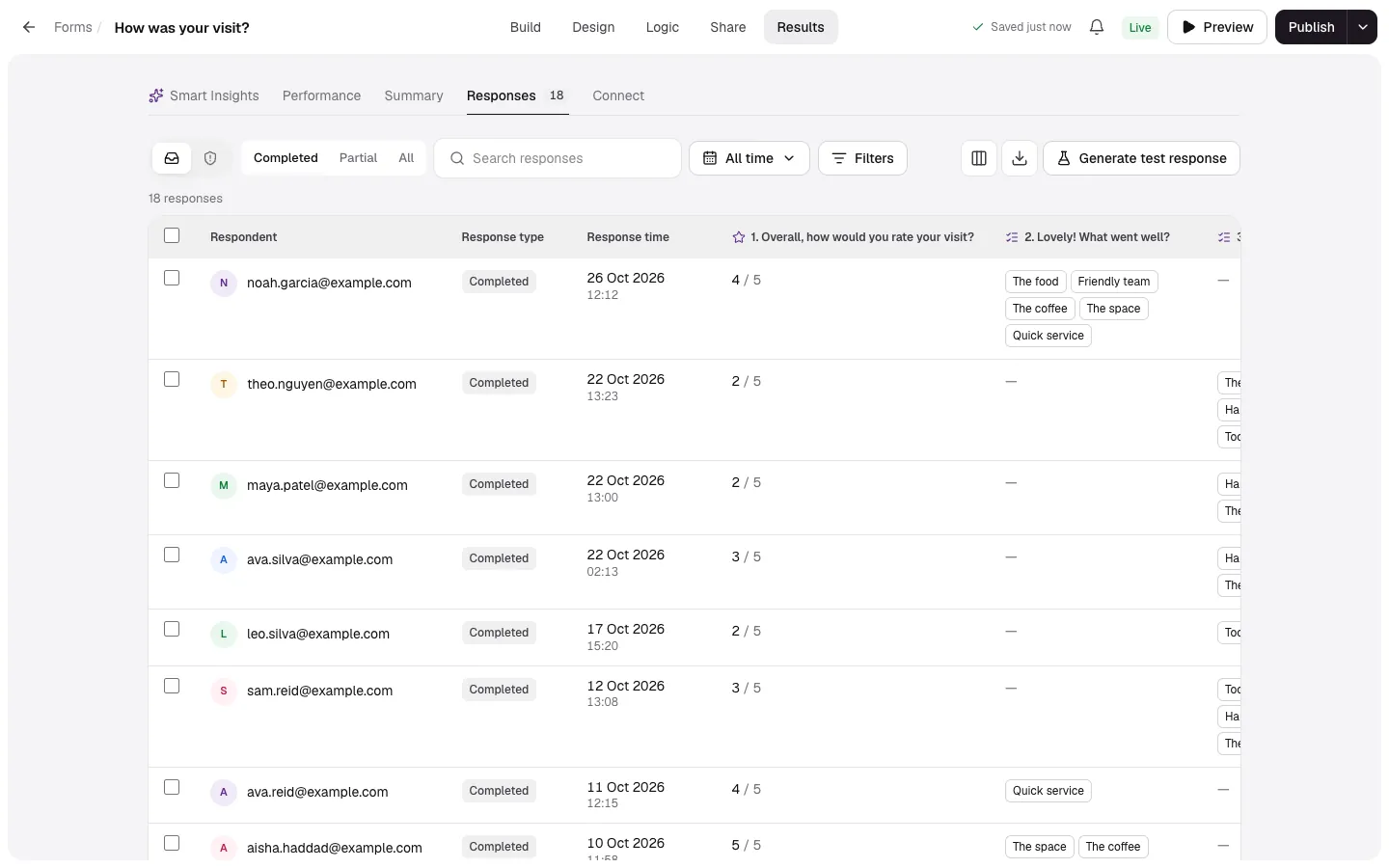
Every response in a table: search, choose columns, open one to read it in full, print it or move through them with the keyboard.
In Results → Responses, every response is a row, newest first. Select Load more at the bottom for older ones.
Inbox and Spam
The Inbox holds your responses. Spam holds ones that looked automated; see Spam.
Columns
Besides each question, you can show Respondent, Response time, Time to complete, Response type, Ending, Score, Tags, Device, Country and your hidden fields. Open Column settings to show or hide columns, drag them into order or reset; drag a column edge to resize it. Columns are remembered for each form in this browser.
Read a response
Click a row to open it in a panel. Move to the previous or next one with ↑ and ↓ (or K and J). The panel's menu has:
- Show unanswered questions (or hide them).
- Print or save as PDF.
- Mark as spam or Not spam.
- Delete response.
Tags sit at the top of the panel; uploads, signatures and recordings open inline.
Select several
Tick rows (or Select all shown) for the bulk bar: download them as CSV or Excel, tag them, move them to Spam, or delete them.