Add, reorder, duplicate and delete screens
Add questions with + or /, drag to reorder, duplicate with ⌘D and copy screens between forms.
Every plan
Add a screen
- Select a screen, then select + under it on the canvas (or the + at the top of the rail), or press /.
- The menu groups types into Text, Choice, Scale, Other and Screens. Type to filter, use the arrow keys, and press Enter to add.
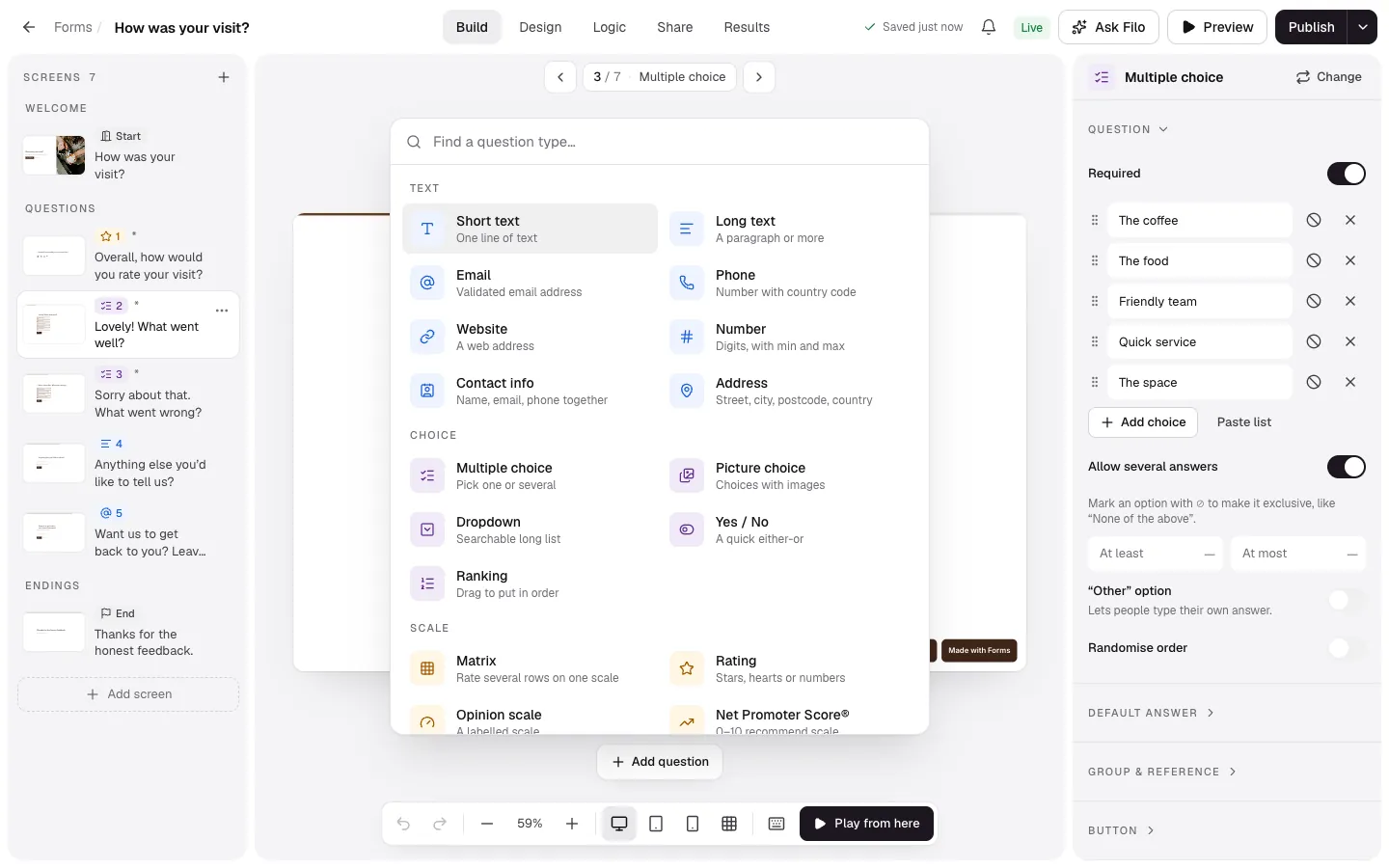
New questions go after the selected screen. A welcome screen always goes first (a form has at most one), and endings stay at the end.
Google Drive upload in the Other group adds a file upload that also saves each file to your Drive. See Google Drive.
Reorder
Drag a screen in the rail, or use Move up and Move down in its menu. Questions can't move above the welcome screen or below the first ending.
Duplicate, hide and delete
- Duplicate (⌘D) copies the screen with its settings right after it.
- Hide until logic shows it keeps the screen out of the flow until a Show action reveals it. See show and hide screens.
- Delete (Delete) removes it. Undo with ⌘Z. A form always keeps at least one screen.
Copy screens between forms
Select a screen and press ⌘C (with no text selected), open another form, select where it should go and press ⌘V. The copy gets fresh ids, and its logic is left behind because it points at the other form's screens.